WordPress is a powerful content management system that allows you to create and manage your own website or blog with ease. One important task when running a WordPress site is adding new users.
Adding new users to your site can help you delegate tasks and streamline your workflow, but it’s important to understand the different user roles and permissions available to ensure that each user has the appropriate level of access.
In this step-by-step guide, we’ll walk you through the process of adding a new user to WordPress, including how to assign different user roles and permissions.
Step-By-Step Guide to Adding New Users And Understanding User Roles on WordPress
We’ll begin by getting a basic understanding of the standard WordPress user roles.
Understanding WordPress User Roles
WordPress has five standard user roles, each with different levels of access and permissions. These roles are:
Administrator
This role has complete control over the WordPress site, including the ability to add and manage other users, change site settings, and install or delete plugins and themes.
Editor
This role can create, edit, publish, and delete any post or page on the site. They can also manage comments and moderate content.
Author
This role can create and publish their own posts, but they can’t edit or delete posts created by other users. They can also upload media files.
Contributor
This role can create and edit their own posts, but they cannot publish them. Instead, their posts must be reviewed and published by an editor or administrator.
Subscriber
This role can only read content on the site and manage their own profile. They cannot create or edit posts or pages, nor can they modify any site settings.
You can learn more about the roles and capabilities on the official WordPress.org website. It goes into a lot more technical detail in case you are interested in diving deeper.
Adding New Users on WordPress
Next, let’s explore the process of adding a new user.
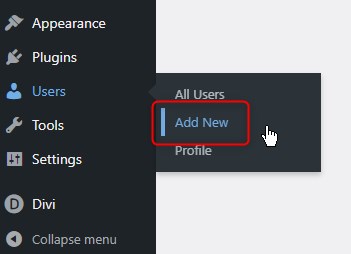
1. Log in to your WordPress website and go to Users > Add New
2. Fill out the form and set the role to to your choice.
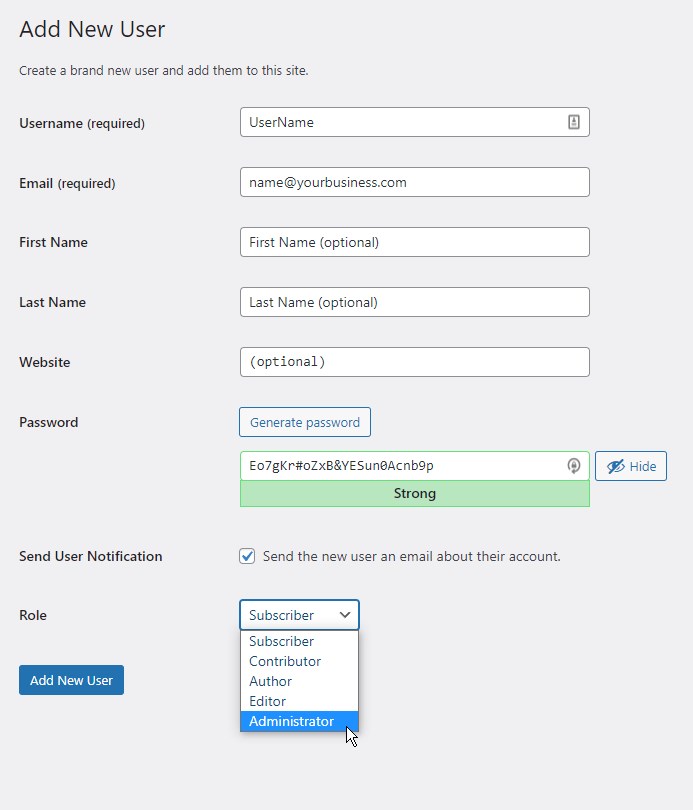
3. Click the “Add New User” button at the bottom of the form.
The new user will receive an email notifying them to login to reset their password. Alternatively, you could also simply notify them of their username and password right after you add them.
Important Security Tip: Limit the Number of Administrators on Your WordPress Site!
Limiting the number of WordPress administrators is an important step in maintaining the security and integrity of a WordPress site. By carefully controlling who has access to administrative functions, site owners can reduce the risk of security breaches and maintain better control over site management. Here are a few reasons why I highly recommend limiting users with Administrator access.
Security
The more administrators a site has, the more potential security risks there are. If an administrator account is compromised, an attacker could gain complete control over the site and potentially cause significant damage. Limiting the number of administrators reduces the risk of a successful attack.
User management
Administrators have the ability to add, modify, and delete other users on the site, which can quickly become difficult to manage if too many users have this level of access. Limiting the number of administrators helps ensure that only trusted users have the ability to manage other users.
Site integrity
Administrators have the ability to make significant changes to a site, such as deleting important pages or modifying site settings. Limiting the number of administrators helps ensure that these changes are only made by trusted users who understand the potential impact of their actions.
In closing
Adding a new user to your WordPress site is a simple process that can be easily accomplished by following the steps outlined in this article.
Understanding the different user roles and permissions available is also crucial for managing your site effectively and ensuring that each user has the appropriate level of access.
By limiting the number of administrators and carefully managing user accounts, you can maintain the security and integrity of your WordPress site and ensure that it remains a valuable tool for your business or organization.
With the information provided in this step-by-step guide, you should now be equipped to confidently add new users to your WordPress site and manage their access and permissions like a pro.


Geno Quiroz serves on the Marketing & Technology team at IPX1031, a Fidelity National Financial company and a national leader in 1031 tax-deferred exchange services. In his current role, Geno focuses on website architecture, design, development, SEO/AIO, and digital marketing strategy. His work helps strengthen the company’s digital presence, improve user experience, and ensure that IPX1031’s online platforms effectively support client engagement and long-term growth.
Concurrently, Geno continues to lead Monterey Premier, the web design and strategic consulting firm he founded in 2015. Through Monterey Premier, he partners with entrepreneurs, nonprofits, and growing organizations to design high-performance websites, refine digital sales funnels, and implement conversion-focused strategies.
His hands-on experience building and scaling a client-facing agency has provided him with a real-world understanding of growth strategy, brand positioning, and the operational realities of business ownership — experience that now directly informs and strengthens his work in enterprise marketing technology.